GUIDE Sound design
Using MPC Software as a plugin, and loading VST/AU plugins inside it
MPC Software plays both sides of the plugin relationship. Drop it into Logic, Ableton, or Pro Tools and it runs as its own instrument, VST, AU, or AAX. Open its own Preferences window and it scans your drive for other people's VST and AU plugins and hosts them on its own tracks. Two directions, one feature, and a hardware detail Akai's own manuals confirm without ever quite saying it outright: this whole story belongs to the computer-connected software, not the standalone box on your desk.
The short version
MPC Software works as a plugin two completely different ways, and most confusion about "MPC and plugins" comes from people mixing the two up. First, you can run the whole MPC Software instance as an instrument plugin, VST, AU, or AAX format, hosted inside another DAW like Logic, Ableton Live, or Pro Tools. Second, and separately, MPC Software has its own Preferences > Plugins tab where it scans folders on your computer or an external drive for third-party VST and AU plugins, then lets you load an instrument plugin onto a Plugin Program or an effect plugin onto an insert slot, entirely inside MPC's own window. Both live in the same manual, both use the word "plugin," and they solve opposite problems: one puts MPC inside somebody else's session, the other puts somebody else's plugin inside MPC's own session. This article covers both, in that order, then the one hardware fact that separates them for good: only the computer-connected MPC Software does either of these things. Standalone MPC hardware running on its own, disconnected from a computer, cannot scan or load a third-party VST or AU plugin at all.
SOUND DESIGN NOTE: judge both directions the same way you'd judge any workflow feature, by how fast it gets you to a beat you can actually play. Running MPC as a plugin means your MPC programs sit inside a session you're already comfortable mixing in, no extra routing. Loading a synth plugin inside MPC means a sound you already own becomes a track you can chop, sequence, and swing without leaving the box. Neither one is a party trick, both save you a context switch.
Two directions, one feature
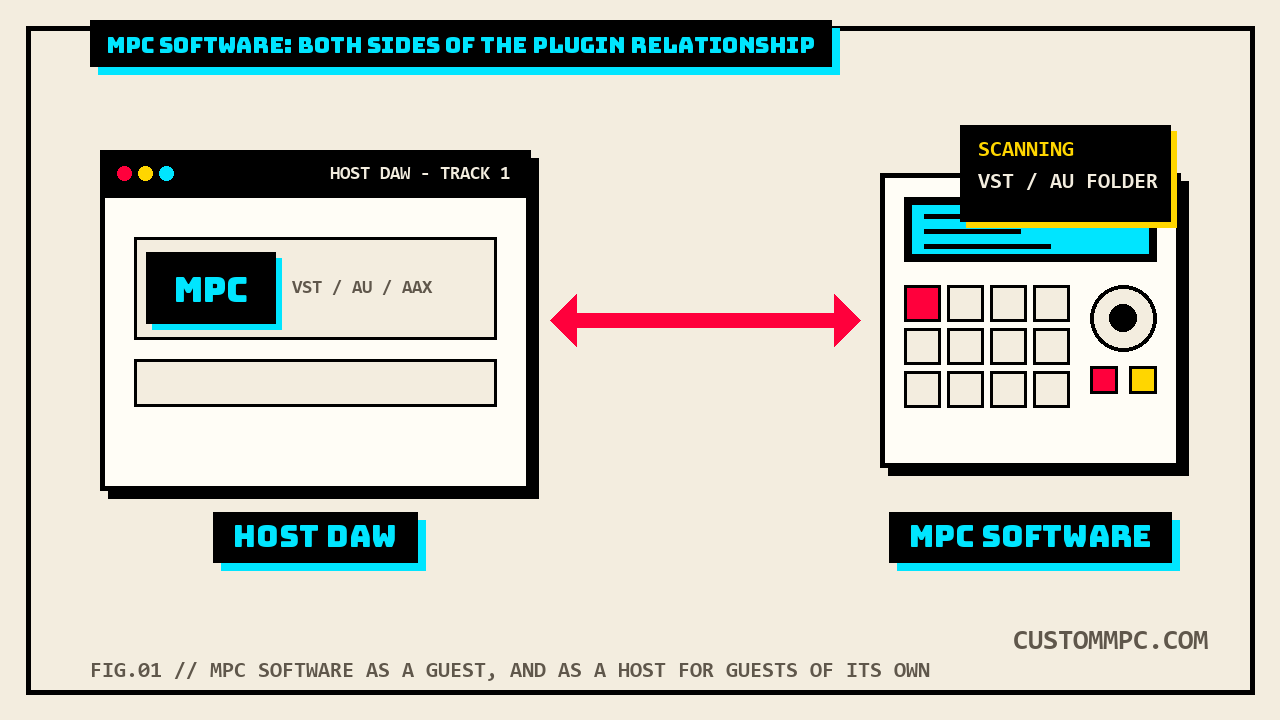
It helps to picture MPC Software as a single window that can sit on either side of the plugin relationship. As a guest, the whole MPC Software application collapses into a single instrument slot inside a host DAW's track, VST, AU, or AAX depending on your host and platform, and everything you build inside MPC, drum programs, keygroup programs, sequences, still exists, it's just being played from inside somebody else's session instead of MPC's own standalone transport. As a host, MPC Software opens its own Plugins preferences, points at a folder of VST or AU files on disk, and those third-party plugins become available inside MPC's own Program list the same way a Drum Program or a Keygroup Program would be, loaded onto a Plugin Program's single track or onto an insert effect slot. Nothing about the second direction requires the first. You can host a hundred third-party synths inside MPC Software running as its own standalone application and never touch a host DAW. You can also run MPC as a plugin inside Logic and never scan a single third-party VST. They're independent features that happen to share a manual chapter and a name.
| Direction | What it is | Format(s) | Where it runs |
|---|---|---|---|
| MPC as a plugin | The whole MPC Software app runs as one instrument inside a host DAW's track | VST, AU, AAX | Inside your host DAW (Logic, Ableton Live, Pro Tools, etc.) |
| Plugins inside MPC | Third-party instrument and effect plugins load onto MPC's own Plugin Programs and insert slots | VST, AU | Inside MPC Software's own window, standalone or hosted |
Running MPC Software as a plugin in a host DAW
If you already work inside a DAW and just want your MPC programs sitting on a track in that same session, MPC Software installs an instrument plugin alongside its standalone application, VST, AU, or AAX depending on your host and operating system. Once it's loaded on a track, it behaves like any other instrument plugin: it takes MIDI in from the host, plays whatever program is loaded, and sends audio back out to the host's mixer. Akai's own manual is deliberately brief about the mechanics of actually inserting and configuring an instrument plugin inside a specific host, and it says so directly: for how to load and use an instrument plugin in a host application, refer to the corresponding chapter of your host application's own manual. That's not a dodge, it's accurate scope. Every host handles instrument-track creation, plugin browsing, and MIDI routing its own way, Logic's Library sidebar is nothing like Ableton's device drop area, which is nothing like Pro Tools' Insert selector, and none of that is MPC-specific. What is MPC-specific, and worth knowing before you go looking for it in your host's manual instead, is what changes once MPC is the guest instead of the host.
The keyboard shortcut catch
The one functional catch Akai calls out by name: some of MPC Software's keyboard shortcuts may not work the same way when you're running it as a plugin, because your host DAW is intercepting those same key combinations for its own shortcuts first. Akai points you at MPC's own built-in reference for the full list rather than reprinting it here: Help > Software Information, then Keyboard Shortcuts, from inside MPC Software itself. There's one named workaround worth memorizing on the spot instead of hunting for it mid-session. On Windows specifically, when MPC is hosted as a plugin, some fields can't be typed into directly, and the normal shortcut for erasing selected notes doesn't come through. Akai's fix is Alt plus Delete. That's a small thing until you're twenty minutes into editing a sequence hosted inside a DAW, hit Delete on a clump of notes exactly the way you would in standalone MPC, and nothing happens. Alt+Del is the one shortcut this article guarantees works, because Akai names it specifically as the exception built for this exact scenario.
Plugin Programs and the six program types
Before getting into how third-party plugins get loaded, it's worth placing Plugin Programs where they actually sit in MPC's own architecture, because this is the connective tissue between "using MPC as a plugin" and "using plugins inside MPC," and it's also the piece that ties this article to the site's existing keygroup-tracks and mixer-guide coverage instead of overlapping it. Every track in a sequence uses one of six program types, and a single project can hold up to 128 programs total. Drum and Keygroup programs both use one or more samples as their sound source, the difference between them is pad-per-sample versus chromatic mapping, and both are the site's existing keygroup-tracks and chop-samples territory, not this article's. MIDI programs send a track's MIDI data out to an external device like a hardware synth. Clip programs launch loopable audio clips off the pads. CV programs send MIDI data out as control voltage, usable only on MPC hardware with CV outputs like the MPC X. The sixth type is the one this article is actually about: a Plugin Program contains an instance of a plugin through which you send your track's MIDI data, and that plugin is exactly the kind of third-party VST or AU instrument scanned in through the Plugins preferences below. Why a whole dedicated program type instead of just letting any track host a plugin directly: a Plugin Program lets one loaded instance of a plugin serve multiple tracks at once, instead of loading a fresh instance of the same synth onto every track that wants it, which is cumbersome and CPU-intensive for anything heavier than a lightweight instrument.
Scanning your VST and AU folders
Before any third-party plugin shows up anywhere inside MPC, whether as an instrument on a Plugin Program or an effect on an insert slot, MPC Software has to scan the folder it lives in. That scan happens once, from a dedicated Preferences tab, not automatically the moment a plugin file exists on disk. The path there differs by platform. On Windows, click the menu icon and select Edit, then Preferences. On macOS, click the MPC menu and click Preferences. Either way you land in the same Preferences window, then click the Plugins tab. From there it's a short, literal checklist: click the "..." button next to a VST Folders field, pick the folder where your plugins actually live in the window that appears, select it and click Open while not inside the folder itself, and the path lands in the VST Folders field with a checkbox next to it that needs to be selected. Repeat for any other folder your plugins are scattered across. Then click Scan New to scan just the newly added locations, or Rescan All to rescan all four VST Folders slots from scratch. The scanned list appears below, and the status bar reads Done once the scan finishes. Click OK to close the window.
- Open Preferences. Menu icon > Edit > Preferences on Windows, MPC menu > Preferences on macOS.
- Click the Plugins tab inside the Preferences window.
- Add each folder your VST or AU plugins live in, one at a time, via the "..." button next to a VST Folders field.
- Check the box next to each added path so it's actually included in the scan.
- Click Scan New for just the folders you added, or Rescan All to redo all four slots.
- Watch for "Done" in the status bar, then click OK.
The Plugin Manager
Once plugins are scanned, the Plugin Manager is where you view and manage all of their statuses in one list. Open it from the menu icon, Tools, then Plugin Manager, or from the gear icon in the lower-left corner of the window that appears any time you go to select a plugin or an insert effect. Four checkboxes and a search field filter the list: Instruments shows instrument plugins, FX shows effect plugins, Good shows plugins that scanned successfully, Bad shows plugins that failed to scan, and Search filters by typed term. Below the filters sits the actual column list, and this is confirmed both format types this whole article covers: the software supports VST or AU plugins, full stop, nothing else.
| Field | What it does |
|---|---|
| Instruments / FX | Filter the list to instrument plugins or effect plugins |
| Good / Bad | Filter to plugins that scanned successfully vs. failed the scan |
| Search | Text filter across the visible list |
| Use | Checkbox; allows MPC software access to this plugin at all |
| Name / Manufacturer / Version | The plugin's own identifying info |
| Type | A waveform+fx icon marks an effect; a guitar icon marks an instrument |
| Path | Where the plugin file lives on disk |
| Channels | How many MIDI channels can be sent to and from the plugin |
| OK | Scan status: OK means properly scanned, Failed means it didn't scan; click and use Rescan to retry |
| Fav | Marks a favorite; favorites get their own category when selecting a plugin |
The Use checkbox is worth calling out on its own: deselecting it doesn't uninstall or delete anything, it just hides that plugin from ever appearing when you go to pick an instrument for a Plugin Program or an effect for an insert slot. A plugin marked Failed in the OK column isn't necessarily gone for good either. Click it, then click Rescan in the lower-right corner to try again, useful after an update to the plugin itself or a permissions fix on its folder.
Building a plugin program
With plugins scanned and showing Good in the Plugin Manager, loading one onto its own program is a short path from the Inspector on the left edge of MPC's window. Click the plug icon below the Track field, the icon that indicates a plugin program. If the project has no plugin program yet, MPC creates one automatically, named Plugin plus a number, and it appears in the Program field. If one already exists, MPC selects the first one automatically instead. To add another one, click the + icon above the Program field, which appends a number, Plugin 002 and onward. Click the Plugin menu and pick the plugin you want from the list, sortable by type or by manufacturer, then click Select to commit or Close to back out. If a plugin you're expecting isn't in that list at all, the fix is almost always back in Preferences: the disk directory it lives in has to be specified there first. From there, next to the Program field, click the menu icon and select All to reveal every setting: an Input Ch menu picks the MIDI channel the program uses, useful when a plugin supports multi-mode across channels, and a Preset menu selects a preset already saved inside the plugin itself, if it has any. Double-click the Program field to rename it.
Volume and pan for a plugin program's track work through the Channel Mixer, not a plugin-specific control: click the three-sliders icon in the toolbar, click the channel strip for the track using that plugin program in the bottom half of the window, and drag the volume slider or pan knob directly. Two catches worth knowing before you build a session around it: copying a sequence carries its volume and pan values along, including onto a new sequence reusing the same plugin program, and some plugins simply don't support MIDI volume and pan at all, in which case the fix is adjusting levels on the plugin program's own channel strip rather than the track strip. Effect plugins skip the Plugin Program step entirely and load straight onto an insert slot instead: double-click an empty slot in the Inserts section of a channel strip, on a pad, keygroup, audio track, most program types, a submix, a return, or a master output, and pick from the same scanned list, sortable and searchable the same way. One more scanned-content type rides the exact same Plugin field as third-party plugins, worth knowing rather than mistaking for a bug: MPC Expansions, Akai's own sample-and-patch packs, also show up for selection as instrument sources the same way, distinguished in the Plugin Manager's Type column by a gear icon marking content included by default with the MPC software.
Why standalone hardware can't do any of this
Every field and step above lives in one specific place: MPC Software running connected to a computer, with its own Preferences window, its own Plugin Manager, its own VST Folders fields. Standalone MPC hardware, an MPC Live, One, X, or Key running entirely on its own without a computer attached, has no equivalent path to any of it. There is no Preferences > Plugins tab to scan a folder on an SD card for third-party VST or AU files, and no Plugin Manager listing them once scanned, because standalone hardware never scans third-party plugin folders in the first place.
Standalone MPC hardware does use the word "Plugin" constantly, and does have its own Plugin Tracks, so this deserves stating precisely rather than as a flat "no plugins at all" claim. Both Standalone OS User Guides on file, versions 3.9 and 3.7, use "plugin" well over a hundred times each, almost entirely in reference to a fixed catalog of Akai and AIR-made instruments and effects, AIR Bassline, AIR Electric, AIR Hype, AIR TubeSynth, the AIR DrumSynth family, AIR Mellotron, AIR Solina, the licensed WayOutWare Odyssey, plus Pro Pack additions like AIR Visual EQ4, AIR Utility, and AIR Fabric Select, all loaded onto a Plugin Track the same way a Drum or Keygroup track loads samples. Getting access to any of them, beyond what ships loaded by default, runs through an inMusic Profile login on the hardware itself: an Activations screen where you sign in, start a free trial or activate a purchased serial number, then download the plugin to internal storage or a connected drive. That's a closed, Akai-curated catalog you license and download through your own account, not a folder you point the hardware at. We grepped the full extracted text of both Standalone OS User Guides for the terms that actually distinguish this article's second direction, third-party plugin formats: "VST," "AU," "AAX," and "Audio Unit." All four returned zero matches in v3.9 and zero matches in v3.7. Scanning a VST or AU folder, the Plugin Manager, and loading a third-party instrument or effect plugin by name are described only in the computer-connected MPC Software User Guide, never in either Standalone OS User Guide on file.
Two near-misses worth flagging so this reads as fully checked rather than a convenient half-search: both standalone guides contain the phrase "third-party plugins" twice each, not once, and neither occurrence is the VST/AU/AAX-format claim this article is making. The first is in the Touch Strip Pitch Bend settings: "Pitch Bend ranges are only applied to MPC instruments and not to third-party plugins," present verbatim in both v3.9 and v3.7. Read next to everything above, this is most likely leftover language carried over from the computer-connected MPC Software manual rather than a description of anything the standalone hardware itself can load, since nothing elsewhere in either standalone guide describes scanning or naming a third-party VST or AU instrument. The second is in the Q-Links section covering MPC hardware used as an Ableton Live control surface, distinguishing "internal Ableton Live plugins" from "third party plugins" purely for how a bank name displays on the MPC's own screen while it's remote-controlling Live running on a connected computer, which is Ableton Live doing the plugin hosting, not the standalone MPC unit. Neither changes the conclusion. Hardware disconnected from a computer still can't scan or load a third-party VST or AU plugin on its own; both mentions are either boilerplate about a feature that isn't there or about remote-controlling somebody else's session, not hosting a plugin locally. But claiming a search found "the one place" a phrase appears, when it appears twice, is exactly the kind of overclaim this section exists to catch, so it's corrected here rather than left as originally drafted.
Common mistakes and quick fixes
Mistake: expecting a plugin to appear before scanning its folder. Dropping a new synth's VST file into a folder MPC already knows about doesn't make it appear on its own. Go back to Preferences > Plugins and click Scan New for the folder it landed in, or Rescan All if you're not sure which folder was checked last.
Mistake: a plugin shows Failed and gets ignored. Failed in the OK column doesn't mean unusable forever. Click the plugin in the Plugin Manager list, then click Rescan in the lower-right corner, especially after updating the plugin itself or moving its files.
Mistake: loading a new instance of the same synth on every track. That's exactly what a Plugin Program exists to avoid. One instance, multiple tracks sending it MIDI, instead of a fresh CPU-hungry copy per track.
Mistake: pressing Delete on notes and nothing happens while hosted. That's the Windows-as-plugin quirk, not a broken session. Alt+Del is the workaround Akai names specifically for this case.
Mistake: assuming standalone MPC hardware can load your computer's VST collection. It can't, on its own, disconnected from a computer. Standalone hardware's own Plugin Tracks run a fixed, Akai-curated set of AIR instruments you license and download through an inMusic Profile, not a folder scan of third-party VST or AU files.
A note on sources
Every technical claim about using MPC as a plugin and about scanning or managing plugins inside it comes from a single primary source, Akai's MPC Software User Guide, Manual Version 2.8: the "Using MPC as a Plugin" section on page 34, the six-type program list on page 35, the Plugin Programs walkthrough on page 39, and the Plugins chapter spanning the scanning steps, the Plugin Manager, and the Selecting Plugins procedures across pages 119 through 123. No retailer page, forum thread, or review was used for any spec or step; every quote above is checked directly against the manual's own extracted text.
The standalone-hardware finding took more digging than a single quote. We grepped the full extracted text of both Standalone OS User Guides on file, version 3.9 and version 3.7, for "VST," "AU," "AAX," and "Audio Unit" specifically, since those are the terms that actually distinguish third-party plugin hosting from Akai's own bundled instrument catalog. All four terms returned zero matches in both files. We did not stop at that clean result and call it done, though: the plain word "plugin" appears well over a hundred times in each guide, describing standalone hardware's own closed set of Plugin Tracks and AIR-made instruments, activated and downloaded through an inMusic Profile login rather than scanned from a folder. We also found and disclosed both places "third-party plugins" appears verbatim in each standalone guide, a Pitch Bend note that reads like carried-over language from the computer-software manual, and the Q-Links section describing MPC hardware as an Ableton Live control surface, and confirmed neither describes the standalone unit hosting a plugin locally, rather than quietly leaving out results that superficially seemed to contradict the finding.
Verdict: which direction do you actually need
VERDICT
Already comfortable mixing in a DAW and want your MPC programs on a track there: run MPC Software as a plugin, VST, AU, or AAX, and just remember Alt+Del on Windows the first time a normal Delete does nothing. Own third-party synths or effects you want playing off MPC's own pads and sequencer: scan them in through Preferences > Plugins, confirm they show Good in the Plugin Manager, then load the instrument onto a Plugin Program or the effect onto an insert slot. Running standalone hardware only, no computer attached: you get Akai's own bundled AIR instrument catalog through Plugin Tracks and an inMusic Profile login, not a scan of your computer's VST folder. That's not a missing feature waiting on a firmware update as far as either manual on file states, it's a different feature entirely, tied to the software running on a computer, not the box.
Built a session worth talking about, hosted either direction? Tell us what happened.