TUTORIAL Workflow
MPC Song Mode: arranging sequences into a song
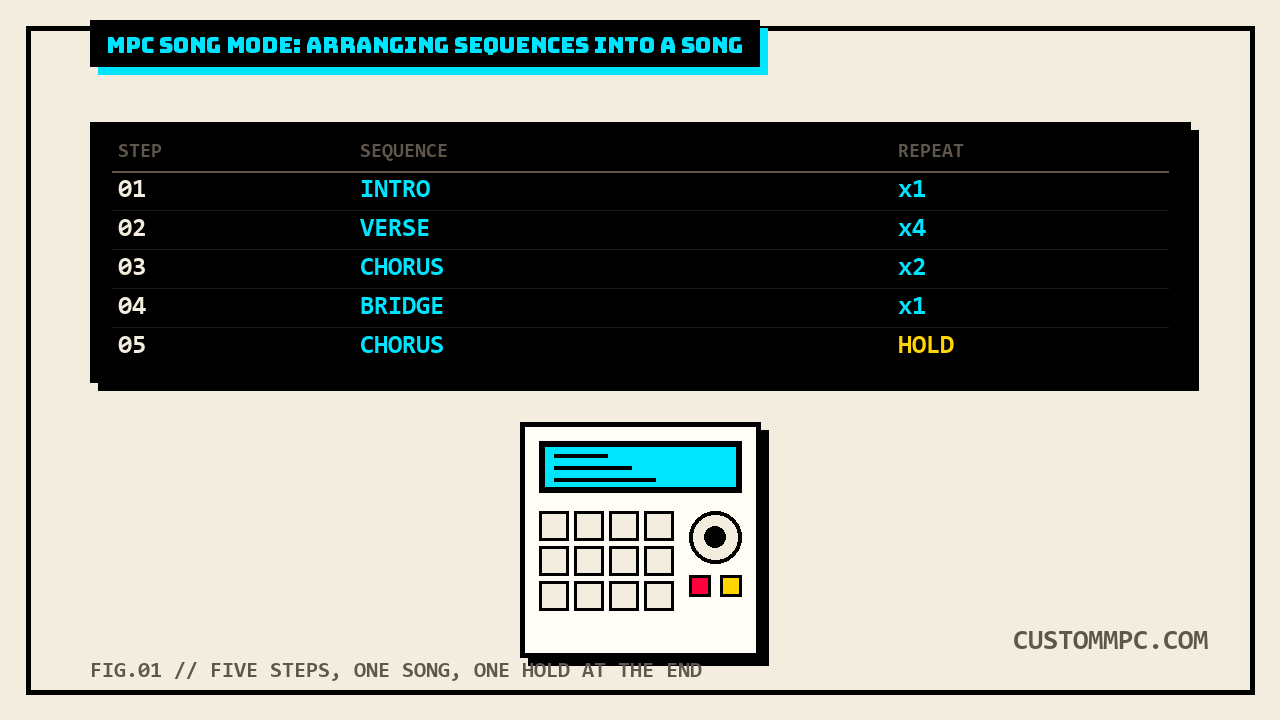
Every sequence on a standalone MPC is a loop, a verse pattern, a drum idea, one section. Song Mode is the screen that turns a folder of those into an actual track: an ordered list of steps, each one a sequence and a repeat count, that plays start to finish without you touching a pad. It's an arranger, not a sequencer, and it works two completely different ways depending on whether you'd rather build it by tapping a screen or by playing it in on the pads.
The short version
Song Mode lets you arrange sequences in a specific order and/or repetition to create songs, and you can edit that structure during playback for on-the-fly composing. A project can hold up to 32 songs, and each song can run up to 999 steps, with every step carrying its own sequence and its own repeat count. Get in two ways: Menu, then Song Mode, or on MPC X and MPC Key 37 G2, press Shift and Next Seq/Song. One hard rule up front: playback has to be stopped before you can enter the mode at all. If a sequence is currently playing, the screen will not let you in. Once you're in, you build the step list one of two ways: tap through the screen and Insert steps by hand, or record-arm the song and play it in with the pads, which is fast but doesn't play any audio while you do it.
WORKING PRODUCER'S NOTE: the two build methods aren't interchangeable and people pick the wrong one for the job constantly. The screen method (tap a step, Insert) is what you want when you're assembling a structure you already know on paper, intro, four verses, two choruses, done, because you can see the whole list while you build it. The pad method is what you want when the arrangement is still in your hands, not your head yet, when you want to feel your way through a structure by pressing pads in the order that sounds right. Just don't expect to hear anything while you do the second one. It's step entry, not a take.
What Song Mode actually does
A sequence on an MPC is a self-contained pattern: a drum idea, a verse, a one-bar loop, whatever you recorded into it. Song Mode doesn't create new musical content out of those, it orders the sequences you already have into a fixed playback list, called a song, and controls how many times each one repeats before the next one starts. That's the entire job. It's closer to a DAW's arrangement timeline than to anything generative, except the "clips" here are whole sequences and the timeline is a numbered step list instead of a horizontal track.
Every sequence that's in use gets assigned to a pad automatically, and empty pads just mean an unused sequence slot. If your project has more sequences than fit on one bank, the Pad Bank buttons switch you to the next set. That pad assignment matters for both build methods below, since it's the same mapping whether you're picking a sequence from a screen field or pressing a pad directly to "record" a step.
Opening Song Mode
Two documented paths in. Menu, then tap Song Mode, works on every current model. The faster route, Shift plus the Next Seq/Song button, is only named for MPC X and MPC Key 37 G2 in Akai's own instructions, more on what that means for other models in the comparison table further down.
The one thing that will stop you cold: Song Mode refuses to open while a sequence is playing. Stop playback first, every time. That's worth remembering because the mode's own headline feature is editing a song's structure live, during its own playback, once you're already in it. The restriction is only on the door in, not on what you can do once you're through it.
The Song screen, field by field
The Song field selects which of your up to 32 songs is currently shown, and the keyboard icon next to it renames the one you're looking at. The BPM field adjusts the tempo, and the Seq/Gbl button next to it decides whether that tempo is the sequence's own stored value or the project's global tempo, the same toggle you can also reach with Shift plus Tap/Master. A Time Counter shows exactly where the playhead is in bars, beats, and ticks.
The real content lives in the sequence playlist on the left, one row per step, five columns:
| Column | What it shows |
|---|---|
| Step number | Position in the list, up to 999 steps per song |
| Sequence | The sequence number and name assigned to that step |
| Repeat count | How many times the sequence plays, up to 999, or set to Hold, the lowest value, to repeat indefinitely until you stop playback |
| Tempo | The tempo of that step's sequence |
| Bars | How many bars the step occupies, calculated from the repeat count |
Hold is the detail that trips people up, and it's worth saying twice: it's the bottom of the repeat-count range, not a separate toggle, not the top. Scroll a step's repeat value all the way down past 1 and you land on Hold, which means the sequence loops forever until you physically stop playback, not that it plays zero times.
Building a song: two ways in
Method one is entirely screen-based. Tap the step in the playlist after which you want to insert a new one, then tap Insert in the lower-right corner. This is the precise way in: you can drop a new step anywhere in an existing list, not just at the end, which matters once a song already has structure you don't want to rebuild from scratch.
Method two treats the pads as a song recorder, with one important catch spelled out directly in Akai's own instructions: the sequences and the song do not play back audio while you build it this way, pressing a pad simply enters that pad's sequence as a new step. Press Rec or Overdub to record-arm the song, press the pad for your first sequence and it lands as step one, keep pressing pads for each additional step, and pressing the same pad more than once in a row adds to that step's play count instead of creating a duplicate step. Press Stop when you're done.
| Method | Audio while building | Best for |
|---|---|---|
| Screen: tap step, Insert | N/A, it's a static list edit | A structure you already planned, and inserting steps into the middle of an existing song |
| Pads: Rec/Overdub, press pads, Stop | Silent, no playback while you press pads | Building the order fast by feel; repeated pad presses stack the repeat count automatically |
Editing, clearing, and deleting steps
To swap a step's sequence without deleting and re-inserting it, tap the sequence name inside that step, then use the data dial or the -/+ buttons to scroll to a different one. Tap Clear to wipe the entire playlist and start over, or tap a single step and then Delete to remove just that one and leave the rest of the song intact.
Next and Sudden: changing a song mid-playback
This is the part of Song Mode that's actually built for performing, not just arranging ahead of time. Tap Next to switch to the next sequence at the start of the next bar, which is the safe option if you want a clean handoff without worrying about cutting mid-phrase. Tap Sudden to switch immediately, whether or not the current sequence has finished playing, which is the live-cue option when you need a change to land the instant you tap it. This is also what the mode's intro line means by editing structure "during playback for easy, on-the-fly composing," you're not limited to building a song before you hit play, you can reorder it while it runs.
Song Mode vs Next Sequence Mode
These two share a physical button on purpose, and knowing why clears up what each one is actually for. Next Sequence Mode lets you trigger different sequences simply by playing the pads, built for live performance, letting you change a song's structure in real time. Enter it through Menu, then Next Sequence, or on MPC X, MPC Live II, MPC One, MPC One G2, and MPC Key 37 G2, press the dedicated Next Seq button. Every pad auto-assigns to a sequence starting from Pad A01 as Sequence 1 and ascending from there. Pads with a sequence light bright yellow and show its name, empty pads sit dim yellow, the currently queued pad flashes green while it waits, and turns solid green once it's actually playing. Press a pad during playback to queue what plays next; if you never pick one, the current sequence just repeats forever on its own. The mode carries its own Next Bar and Sudden buttons, the same two behaviors Song Mode uses, plus a Clear that removes only the currently selected sequence from its own playlist (and only when that sequence isn't the one playing) and a Hold that repeats the current sequence indefinitely while temporarily ignoring further pad presses, tap Hold again to release it.
Here's the bridge between the two, stated directly in Akai's own manual rather than something we're inferring: while playback is stopped, tap Song inside Next Sequence Mode, pick a destination song in the Copy to Song screen, and tap Do It. That takes whatever order you just played live and freezes it into an actual Song Mode step list you can keep editing afterward. That's the actual workflow reason the two modes sit behind the same button. Next Sequence Mode is the live, disposable version, you jam an arrangement into existence by pressing pads while it plays. Song Mode is the fixed, editable version, a step list that doesn't need audio playing to build or change. Copy to Song is the one-way door between them: play it live first, then commit the result to a real song once you like what happened.
The hardware confirms the pairing is deliberate. The same physical button, labeled Next Seq/Song on MPC X's own control-layout reference, does one thing on a plain press and the other on Shift-plus-press: press it alone for Next Sequence Mode, hold Shift and press it for Song Mode. But the two device lists Akai names for the direct-button shortcuts genuinely aren't the same list, and that's worth laying out plainly instead of assuming every model gets both:
| Mode | Menu path | Named direct-button models |
|---|---|---|
| Next Sequence Mode | Menu > Next Sequence | MPC X, MPC Live II, MPC One, MPC One G2, MPC Key 37 G2 |
| Song Mode | Menu > Song Mode | MPC X, MPC Key 37 G2 |
Read that straight: MPC Live II, One, and One G2 get the fast Next Seq button into the live mode, but Akai's own shortcut instructions don't name a Shift-modified path into Song Mode on those same models, Menu is the documented route there. Only MPC X and MPC Key 37 G2 get both a Next Sequence button and a Shift shortcut for Song Mode. We're reading exactly what each "do either of the following" list names and not extrapolating past it, models not mentioned in a given list simply aren't covered by that specific shortcut instruction.
Turning a song into one sequence, or into audio
Convert > Seq opens the Convert to Sequence window: pick a destination in the To Sequence field, set Track Status to either Exclude Muted Tracks or Include Muted Tracks, and tap Do It to flatten the whole song, every step, every repeat, into one continuous sequence. Tap Close instead to back out without converting. That's the move when you want to keep editing the whole arrangement as a single, further-choppable sequence rather than a locked step list.
Tap Export instead and the screen jumps straight to Audio Mixdown, where the song renders out as an audio file. Convert to Sequence keeps you inside the project for more editing. Export gets you a bounced file to hand off or mix elsewhere. Pick based on whether you're still working the arrangement or done with it.
Common mistakes and quick fixes
Mistake: trying to enter Song Mode while something's still playing and assuming the button is broken. It isn't, the mode is documented to refuse entry during playback. Stop first, every time.
Mistake: expecting to hear the song while record-arming it with pads. That method is silent by design, pressing pads only writes steps into the list, it doesn't trigger playback of the sequences or the song.
Mistake: scrolling a step's repeat count down looking for "off" or "zero" and landing on Hold instead. Hold sits at the bottom of the range and means infinite repeat until you manually stop, the opposite of what a bottom value usually implies in most menus.
Mistake: tapping Next and expecting an instant cut. Next deliberately waits for the next bar to avoid a mid-phrase jump. If you actually need an instant cue, that's what Sudden is for, not Next.
Mistake: reaching for Shift plus Next Seq/Song on a model that doesn't get that specific shortcut. Only MPC X and MPC Key 37 G2 are named for it. On Live II, One, and One G2 that same button does get you into Next Sequence Mode with a plain press, but Song Mode itself is a Menu trip on those units.
A note on manual versions
Rule two on this site is that conflicts and differences between sources get stated, not quietly resolved, and this article has two genuine ones worth flagging. The Song Mode chapter itself hasn't changed in substance between manual revisions, but two things around it have.
First, the page numbers moved. The identical Song Mode chapter sits at pages 328 through 330 in the current v3.9 guide and at pages 318 through 320 in the older v3.7 guide, a flat 10-page shift, consistent with the page-shift deltas already disclosed in prior articles on this site between these same two manual versions.
Second, the hardware-shortcut line for Song Mode itself changed what it names. The v3.7 guide's instruction reads "Press Shift and Next Seq/Song (MPC X)," naming only the MPC X. The current v3.9 guide's version of the same line reads "Press Shift and Next Seq/Song (MPC X, MPC Key 37 G2)," adding the Key 37 G2. That's not a copy-editing change, the MPC Key 37 G2 is genuinely newer hardware that isn't part of v3.7's supported-model lineup at all, we checked the full v3.7 text for any mention of that model and found none. The shortcut list grew because Akai's own hardware lineup grew, not because the older manual was wrong about what existed at the time it shipped.
Verdict: which way to build it
VERDICT
Structure already planned: use the screen, tap a step, Insert, build it in order, it's slower but exact and you can drop a step into the middle of an existing song without rebuilding anything. Structure you want to feel out: record-arm the song and press pads, no audio plays while you do it, but repeated presses on one pad stack the repeat count automatically, so building fast and building right can be the same motion. Performing live, structure still fluid: stay in Next Sequence Mode instead of Song Mode entirely, play it by ear with Next and Sudden, and only Copy to Song once you've landed on an order worth keeping. Done arranging, need to keep editing at the note level: Convert to Sequence. Done arranging, need a file: Export straight to Audio Mixdown. None of this needs an external arranger app bolted onto anything. It's one screen and one button, and now you know which one does what.
Found a Song Mode quirk this didn't cover? Tell us what happened.